 Viral
How it works
Three Chrome extensions that work in your own browser, on your own X account. You set everything on this site; the extension reads it before every run and reports back what it did.
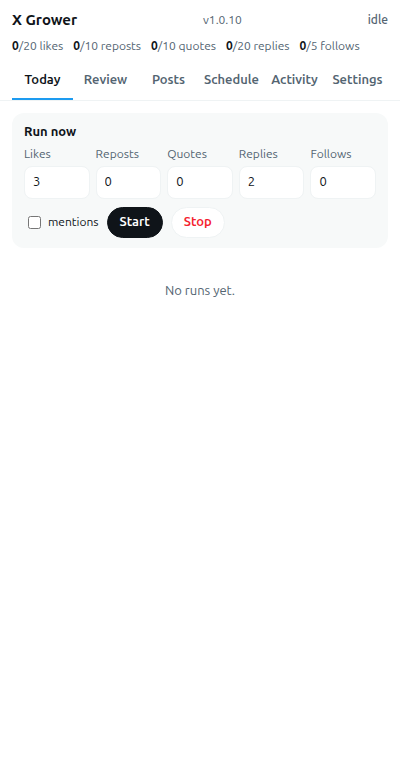
X Grower
- At the times you set (and about every hour), it opens X in its own window.
- It searches your terms (newest first, only fresh posts), reads your mentions and your Following tab, and picks posts from people in the follower range you set.
- The AI writes a reply or quote in your voice, from what you wrote in "About" and "Voice". It never invents facts about you.
- In Review mode the reply waits in the extension until you click Send. In Auto mode the extension sends it.
- It likes, reposts and follows up to your daily caps, and posts your scheduled posts at their times.
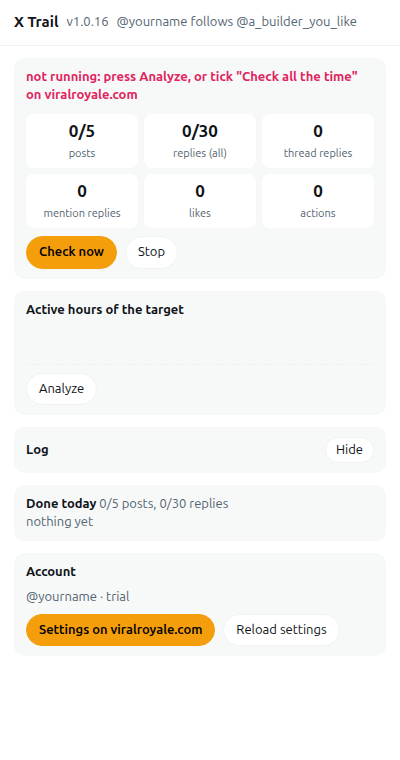
X Trail
- You pick one account to follow, someone who grows the way you want to.
- Analyze reads their last 7 days and finds the hours they are active.
- In those hours (or all day) it checks their profile again a few minutes after each check ends (you set the minutes, e.g. 10-20).
- A new post from them: you post the same idea in your own words (never a copy).
- A new reply from them: you reply to that same post, in your voice, with a different point.
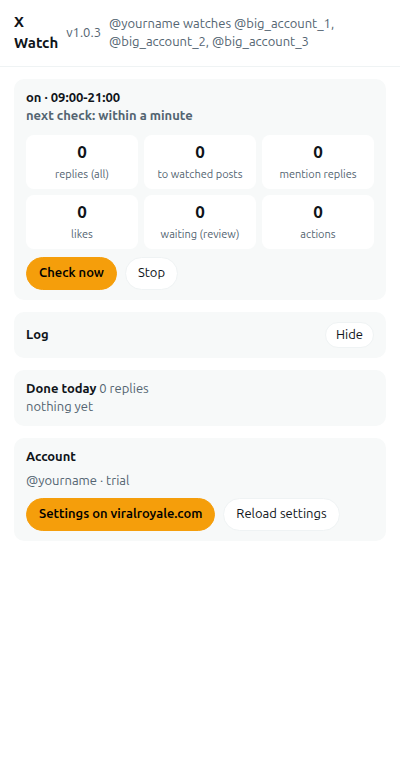
X Watch
- You pick up to 5 big accounts in your niche.
- Each check answers your mentions first (shared with the other extensions, never twice).
- Then it opens each account's posts: a post from the last hour gets your reply in your voice. Crowded posts and sensitive topics are skipped.
- It checks again after the gap you set (e.g. 15-30 minutes), only in the time period you set (e.g. 9:00-21:00). In Review mode, replies wait for your Send click.
Together on one account
They take turns (one works while the other waits a few minutes), each keeps its own daily limits, and neither replies to a post the other already replied to.
What you see
Every like, reply, quote, follow and post shows on the Activity page with links. The Dashboard shows the last run of each extension and any error.
Set it up, step by step
Chrome on a computer (Windows, Mac or Linux). About 5 minutes.
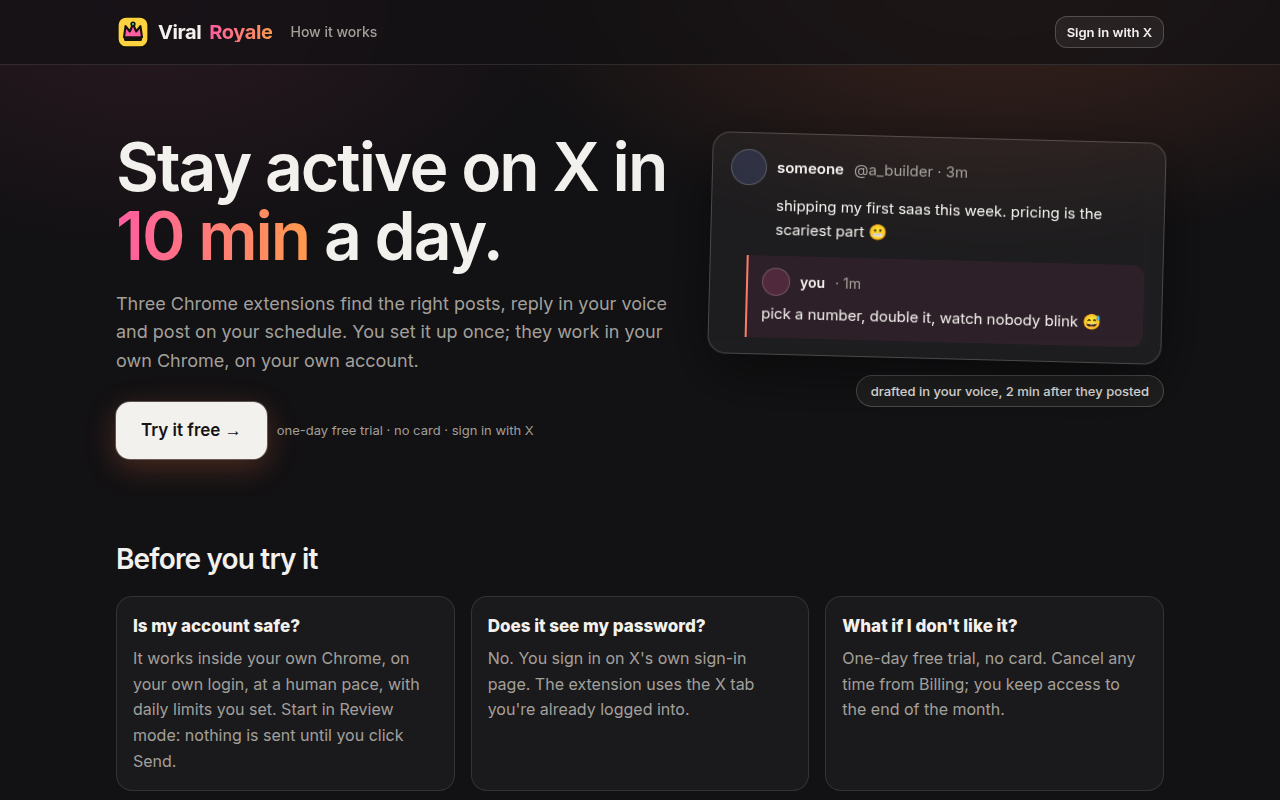
1. Sign in with X
Click Sign in with X and allow it. Use the X account the extensions should work on.
2. Choose your extension
Start the one-day free trial of any of the three, or subscribe: $29 a month each, or $49 for X Grower + X Trail together.
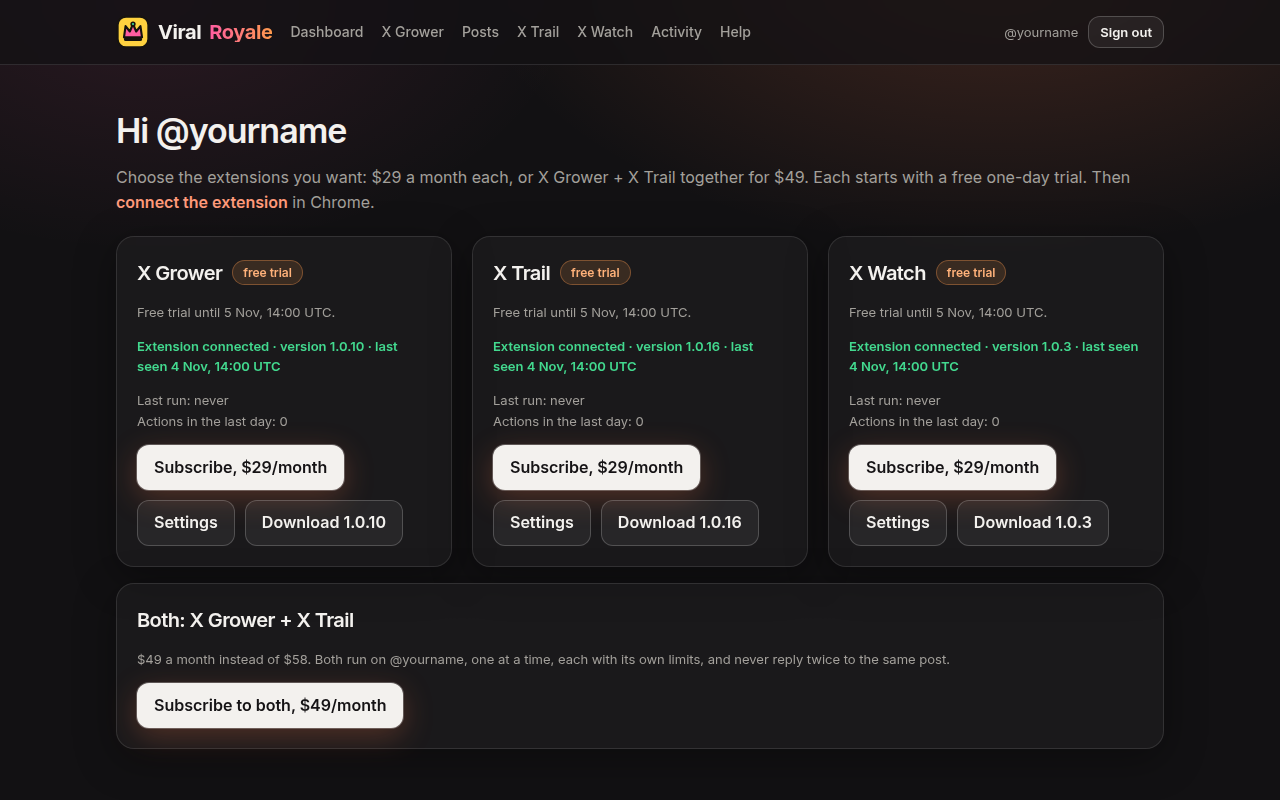
3. Download and unzip
Download X Grower, X Trail and/or X Watch. Unzip each file into its own folder and keep the folder (Chrome runs the extension from it).
4. Add it to Chrome
- Open a new tab and go to
chrome://extensions. - Turn on Developer mode (top right).
- Click Load unpacked and pick the unzipped folder. Do the same for each extension you use.
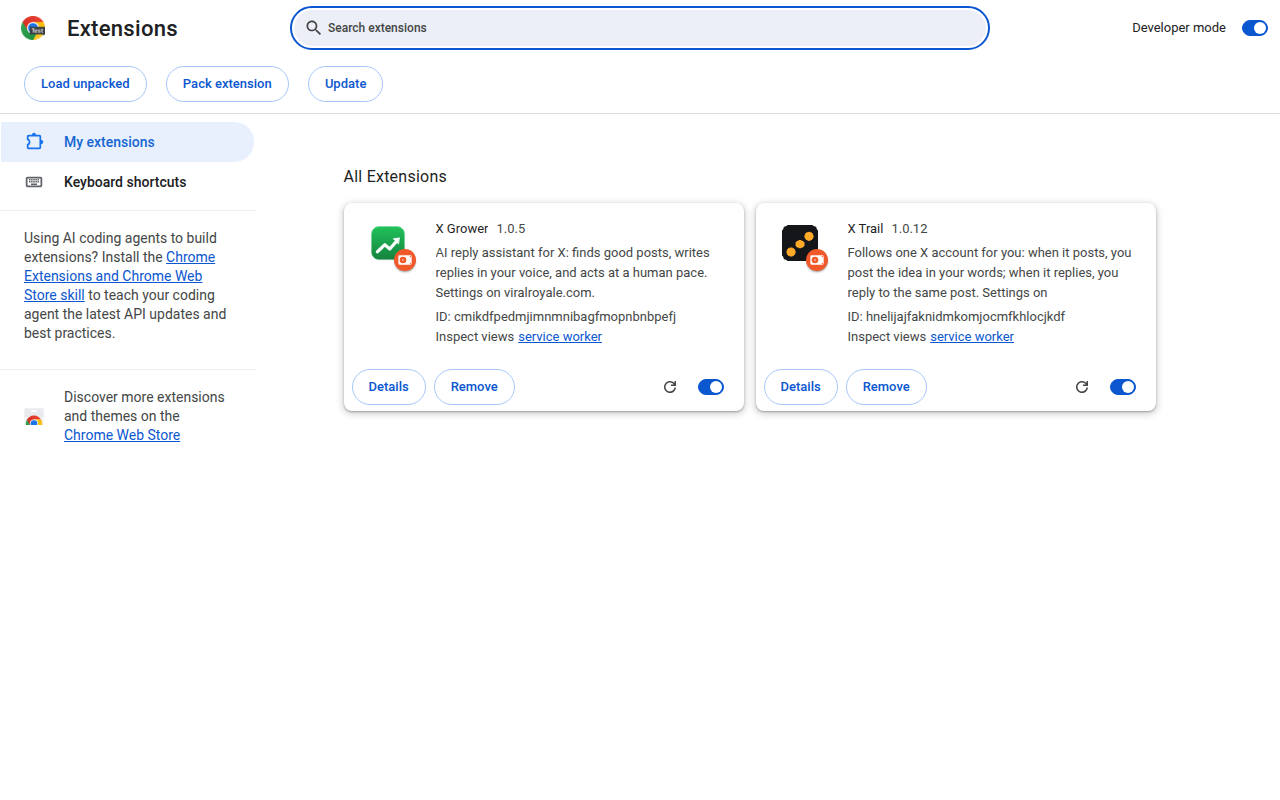
Then click the puzzle icon in Chrome's toolbar and pin the extension, so its icon stays visible. Clicking the icon opens its panel at the side.
5. Connect
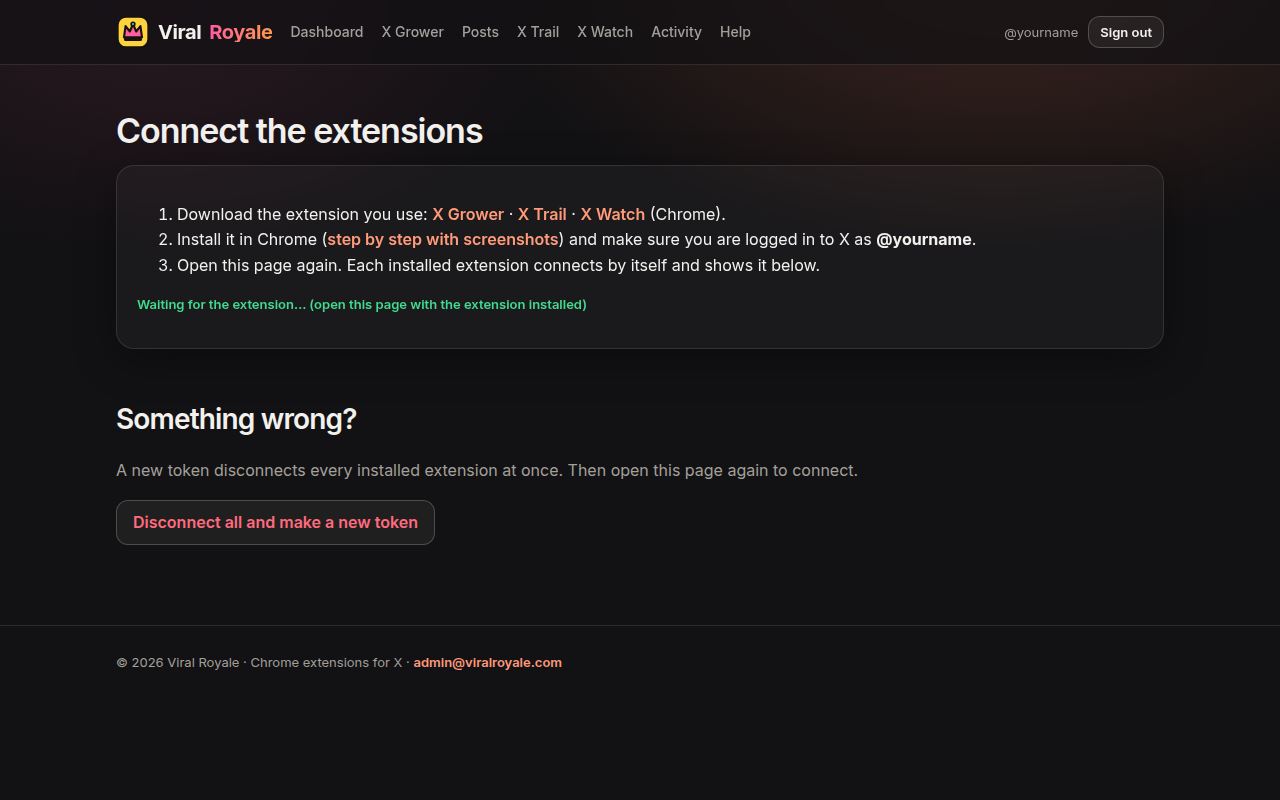
Log in to X in the same Chrome with the same account. Then open Connect on this site. Each installed extension connects by itself and says so.
6. Set it up here
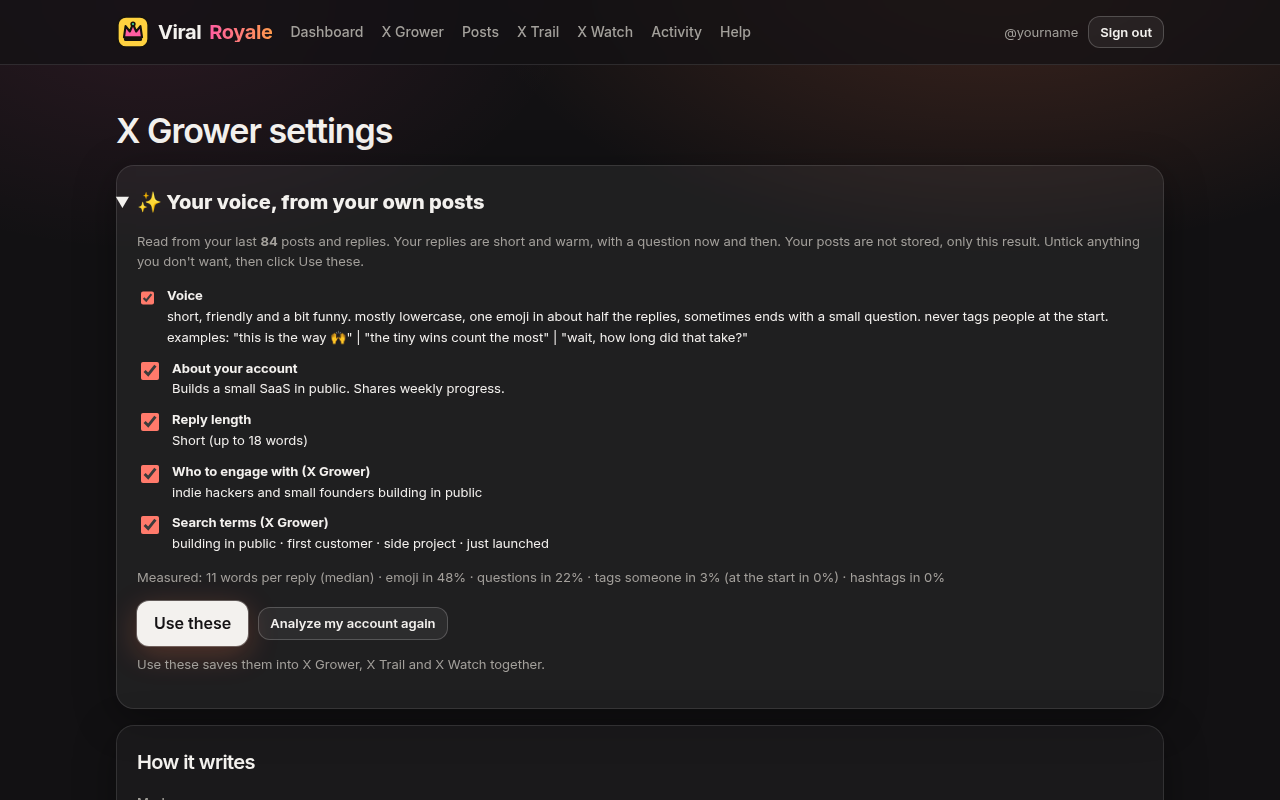
About 2 minutes after connecting, the extension reads your own posts and replies and suggests your voice. Check it in the ✨ box at the top of each settings page and click Use these: it fills all three extensions at once.
X Grower: your voice, who to reply to, search terms, daily caps and the times it runs.
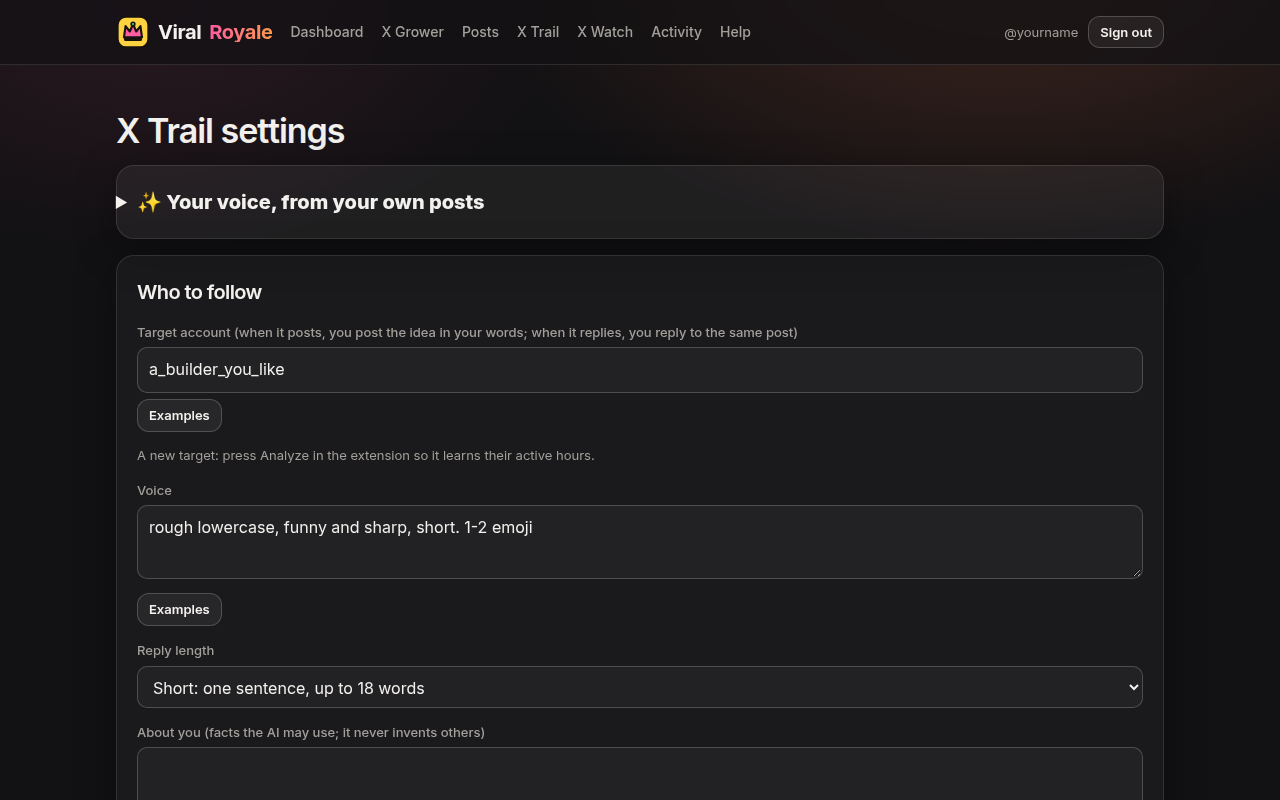
X Trail: the one account to follow, your voice and the daily caps.
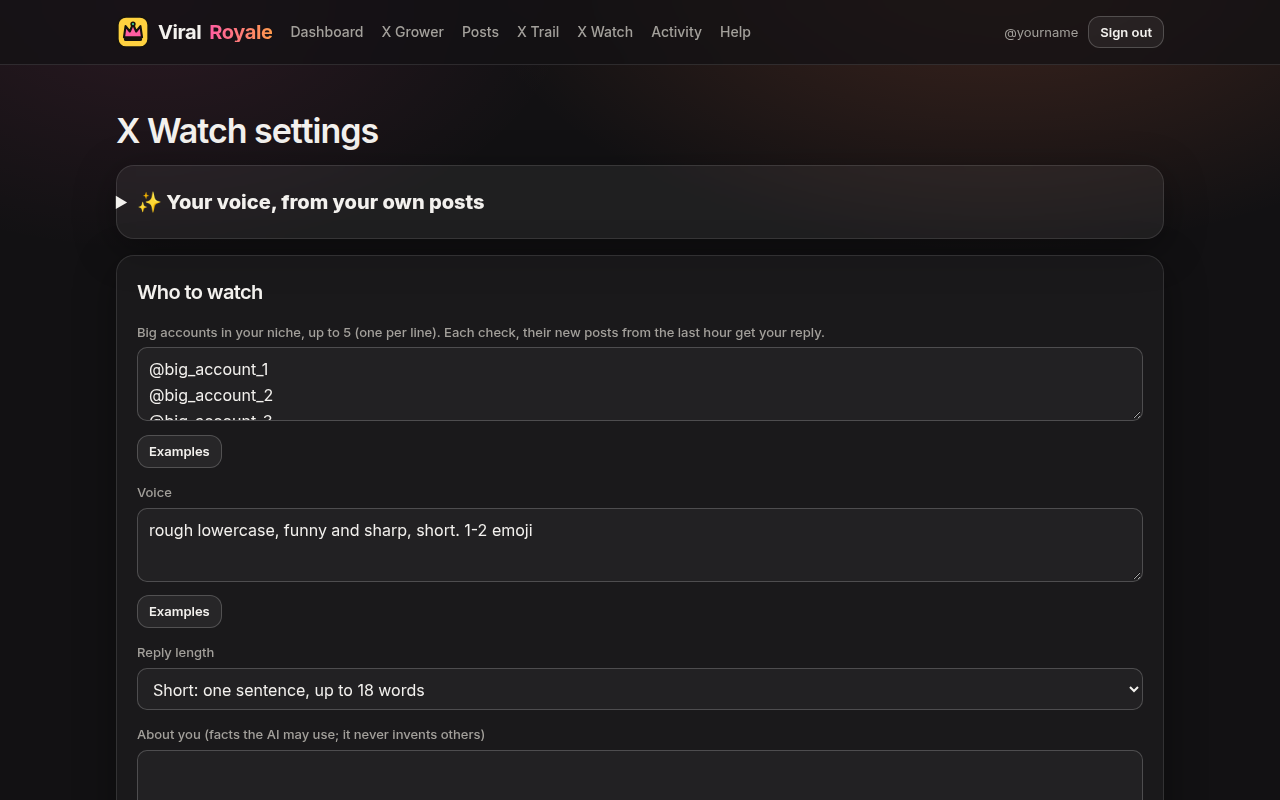
X Watch: up to 5 big accounts in your niche, your voice, Auto or Review, and the hours it checks.
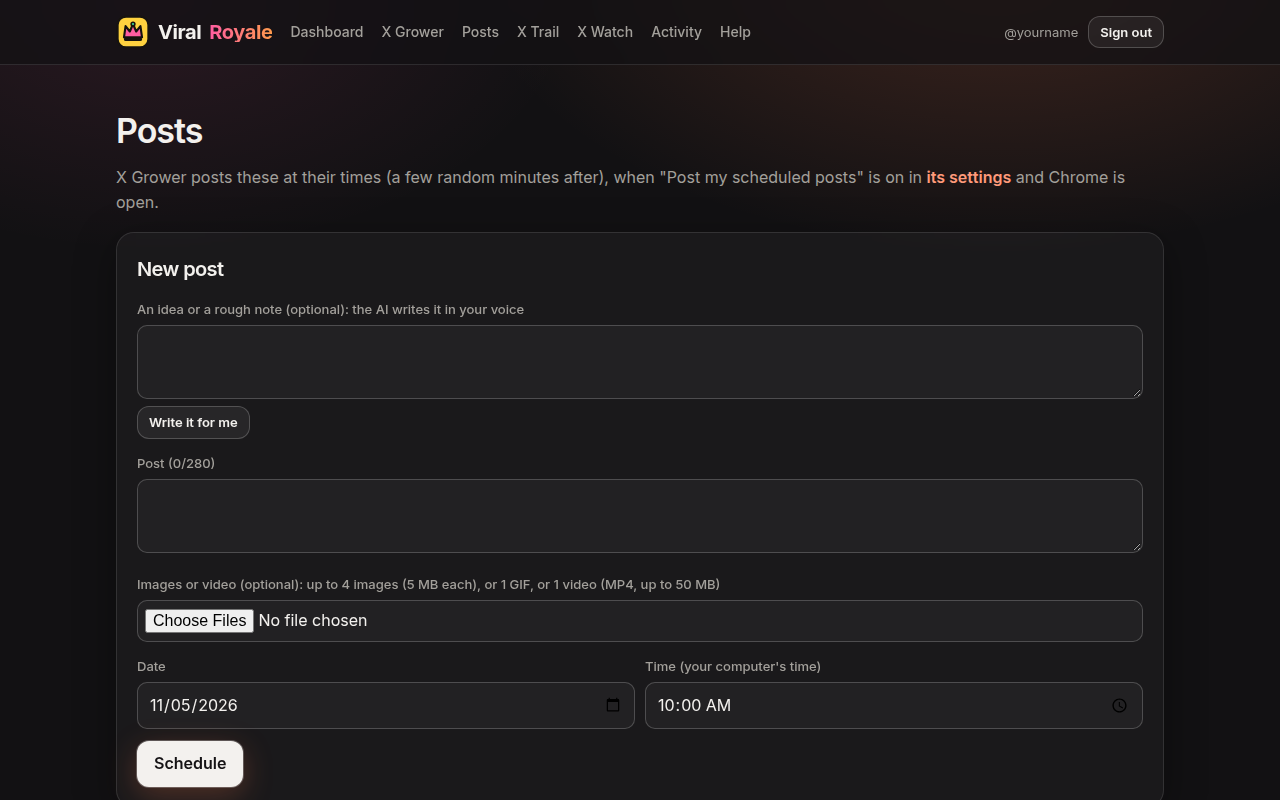
Posts: write or schedule your own posts, with up to 4 images or a video. X Grower posts them at their times.
7. Let it run
Keep Chrome open. Each extension's panel shows what it is doing now: Start (X Grower) or Check now (X Trail, X Watch) runs it at once. For X Trail, press Analyze once so it learns the target's hours. In X Watch's Review mode, replies wait in the panel for your Send.
Updating
When there is a new version, the extension's panel shows a red box:
- Click Download update.
- Unzip it into the same folder you installed the extension from, replacing the old files.
- Click Reload extension in the panel. Your settings and connection stay.
The Dashboard also shows each installed version and warns when it is not the latest.
Good to know
- It only works while Chrome is open on your computer.
- It works only on the X account you signed in with here. If another account is logged in to X, it does nothing.
- Start with low daily caps on a new account and raise them slowly.
- Questions: email admin@viralroyale.com